AI Inpainting: Seamlessly Remove Unwanted Objects
Discover how AI inpainting can remove unwanted objects, fix damaged photos, and clean up images with incredible results using powerful AI models.
Munib Ali Laghari
Founder & Lead Developer
Quick answer
How do you remove an object from a photo with AI?
AI inpainting removes an unwanted object after you paint over it: the model analyzes the surrounding pixels and fills the area with matching texture and color so the removal is invisible. EnhanceCraft erases people, watermarks, power lines, and blemishes, reconstructing the background behind them.
Before
After
More examples like this: browse before & after results across every tool.
Have you ever taken the perfect photo, only to find an unwanted object ruining it? Maybe it's a stranger in the background, power lines crossing the sky, or an unexpected reflection. What used to require expensive software like Photoshop and hours of manual work can now be done in seconds with AI inpainting.
What is AI Inpainting?
AI inpainting fills missing or unwanted areas of an image by analyzing surrounding context — textures, colors, gradients, and scene structure — and generating realistic replacement content that blends seamlessly. Unlike manual cloning, which requires expert judgment for every pixel, AI handles large complex areas automatically in seconds.
Inpainting is the intelligent process of filling in missing or unwanted parts of an image. Think of it as having a smart digital paintbrush that understands your photo's context and automatically fills in gaps with realistic content.
Modern AI inpainting can handle impressive tasks like removing large objects, repairing damaged photos, cleaning up distractions, and even extending image borders naturally.
How It Works
Our inpainting technology analyzes the entire image to understand the scene context before filling any removed area — which is why it can reconstruct complex textures like grass, sky, or water that simple cloning tools handle poorly.
Our inpainting technology uses advanced AI that analyzes your entire image to understand the scene. When you mark an area to remove, the AI examines the surrounding context, textures, colors, and patterns. It then intelligently generates new content that blends seamlessly with the rest of your photo.
The AI excels at handling large areas (not just tiny blemishes), matching complex textures, preserving natural edges, and understanding scene context to create realistic fills.
Perfect Use Cases for AI Inpainting
Manual background removal in Photoshop takes 20–60 minutes per complex image for experienced editors. AI inpainting eliminates unwanted objects in seconds, making it practical to clean entire photo collections without dedicating hours to individual images.
Cleaning Up Your Photos
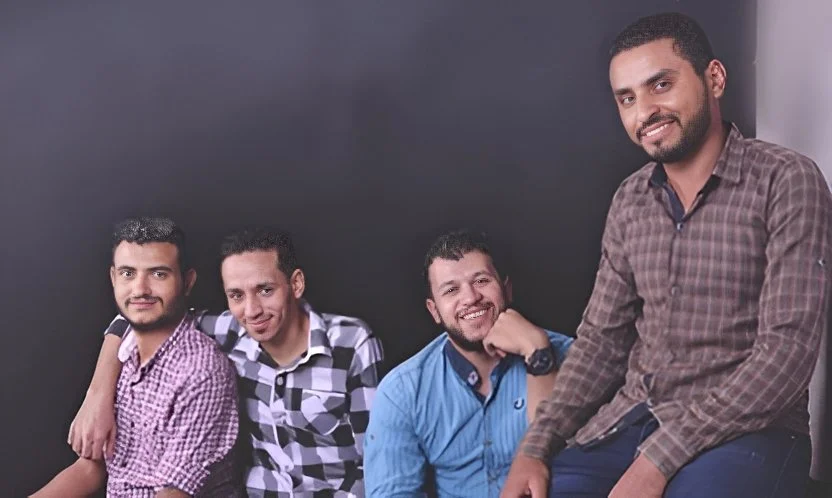
Tourist photos are notorious for unwanted elements. Remove that random person who walked into your shot, delete distracting power lines from landscape photos, eliminate trash or clutter from the scene, or clean up crowded tourist spots to show the location as you remember it.
Restoring Damaged Images
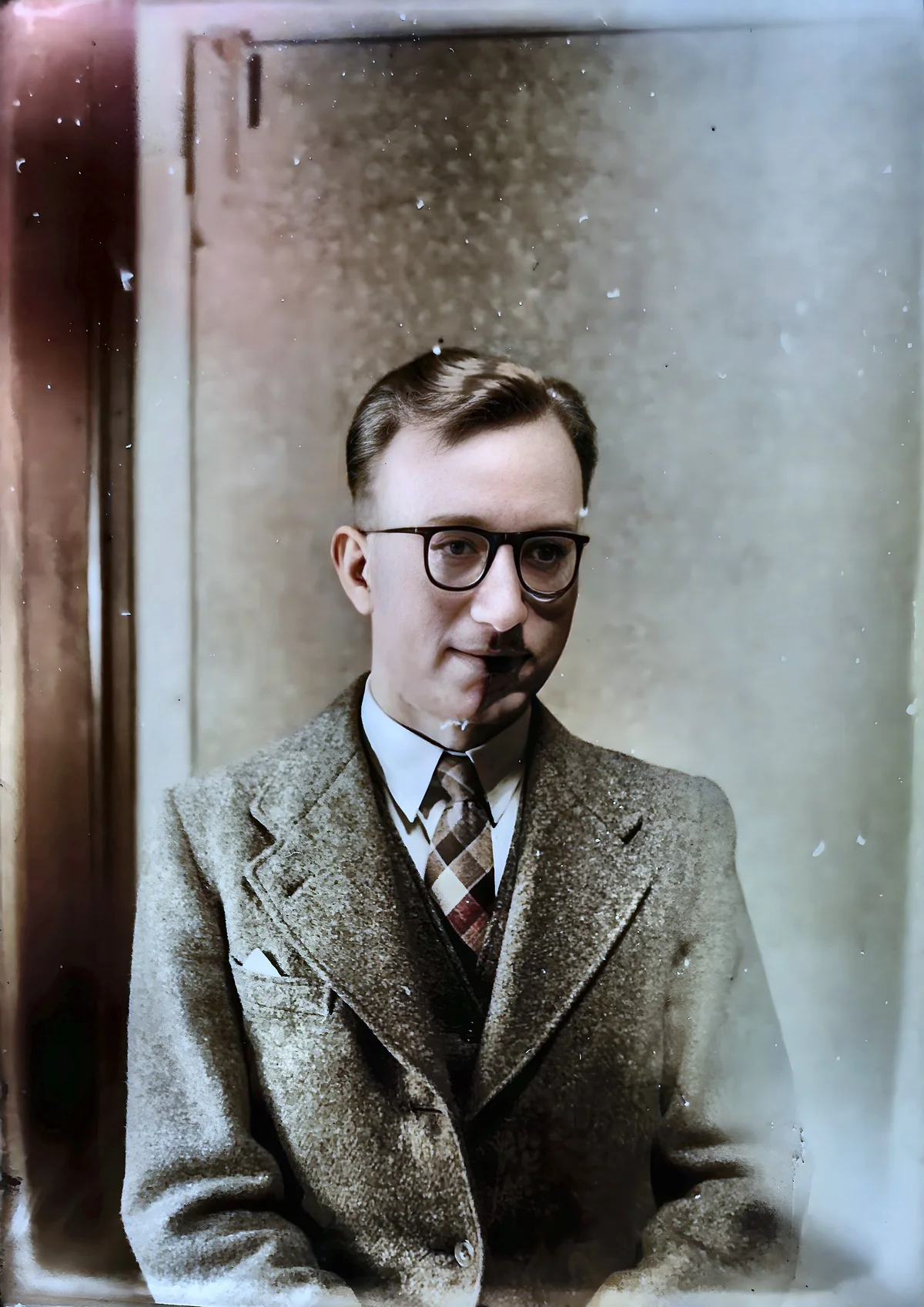
Old photographs are precious but fragile. AI inpainting can repair torn or creased photos, fix water damage and stains, remove scratches and marks, and restore missing corners or edges. Your cherished memories deserve to look their best.
Professional Applications
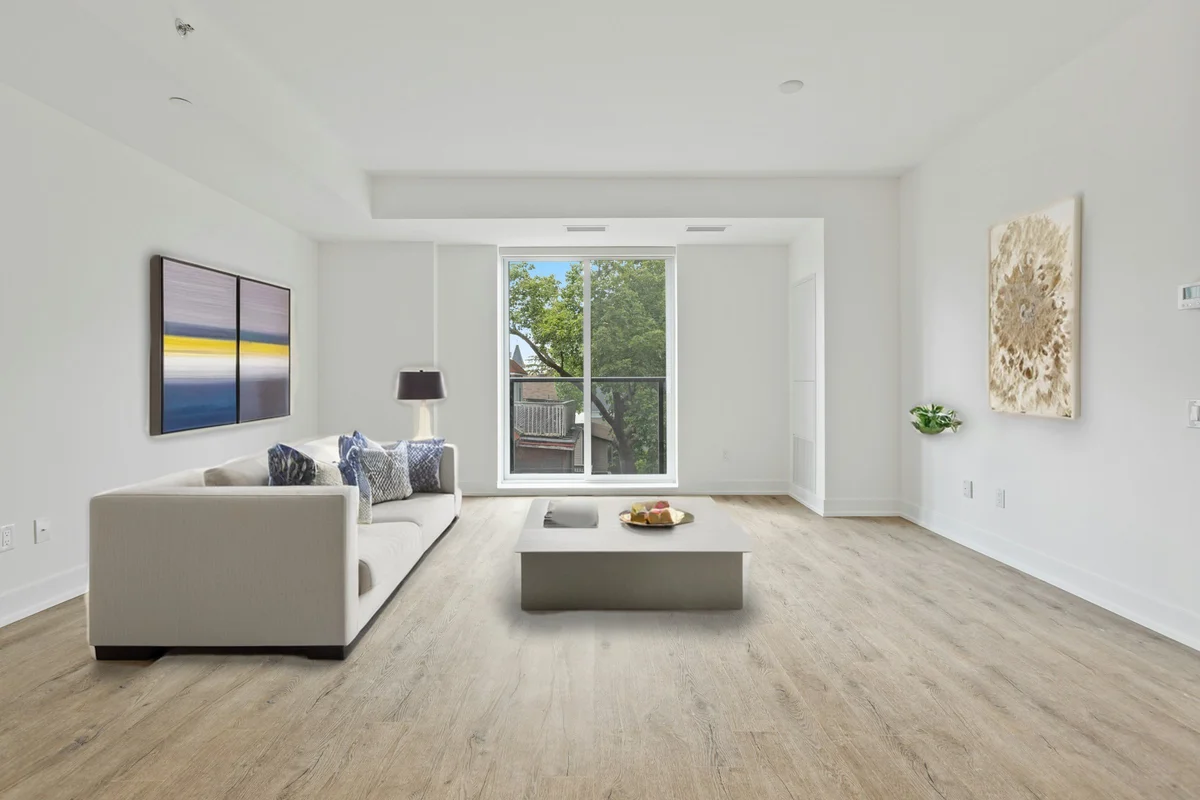
For business and creative work, inpainting is invaluable. Real estate photographers can remove parked cars from driveways and eliminate trash bins or unsightly objects. Product photographers can remove price tags and labels, clean up reflections, and perfect their backgrounds. Content creators can prepare cleaner images for marketing and remove distracting elements from compositions.
Getting the Best Results
The key to great inpainting results starts with your selection. When marking the area to remove, draw slightly beyond the object's edges and include its shadow. Being generous with your selection gives the AI more context to work with.
Inpainting works best on certain types of backgrounds. Simple, uniform backgrounds like sky, grass, or plain walls are ideal. Repetitive textures such as brick, tiles, or fabric patterns give excellent results. Natural scenes like forests, beaches, and landscapes are also great candidates.
However, some scenarios are more challenging. Complex geometric patterns, important details like faces, highly structured backgrounds, and unique non-repeating elements may require multiple attempts or different approaches.
Advanced Techniques
For particularly stubborn objects or complex scenes, try a multi-pass approach. First, remove the main object. Then, use inpainting again to clean up any remaining artifacts. Finally, make small fine-tuning adjustments if needed.
You can also combine inpainting with our other tools for even better results. After removing an object, upscale the image for enhanced detail. Use our face restoration tool if the inpainting affected any portraits, or apply background removal and replacement for complete scene transformations.
The same fill-from-context technology powers several packaged workflows. For real-estate photos, window pull reconstructs the view through blown-out windows and the real-estate edit pack bundles it with geometry and color corrections; for apparel, the ghost mannequin tool fills the inside of a garment after the mannequin is removed so it looks worn by an invisible body.
Professional Tips
Starting with Quality
Higher resolution images always produce better inpainting results. Start with the sharpest, clearest version of your photo available. Good lighting in the original photo helps the AI understand the scene better, and simpler backgrounds are naturally easier to work with.
Using the Selection Tool
Take your time when marking the area to remove. Use brush tools carefully and precisely. Make sure to cover the entire unwanted object including its edges. Don't forget to include shadows cast by the object, as leaving them creates an obvious giveaway.
Ready to Try It?
AI inpainting puts professional photo editing power in your hands. Whether you're cleaning up personal photos, restoring family memories, or perfecting images for business use, our inpainting tool makes it simple.
Upload your image, mark what you want to remove, and watch it disappear seamlessly. No complicated software to learn, no manual painting required—just intelligent AI doing the heavy lifting for you.
Found this helpful?
Share it with your network
Ready to try it yourself?
25 free credits to start, then 10 every month. No credit card. Process your first image in under 15 seconds.
Try Object Remover freeMunib Ali Laghari
Founder & Lead Developer · EnhanceCraft
Munib Ali Laghari is the founder and lead developer of EnhanceCraft, an AI image toolkit. He writes about AI upscaling, photo restoration, and background removal. Connect on LinkedIn