AI Background Replacement: Change Any Photo Background in Seconds (2026 Guide)
Replace any photo background with solid color, gradient, or AI-generated scene — one-click AI, under 10 seconds, 25 free credits to start. Complete 2026 guide.
Munib Ali Laghari
Founder & Lead Developer
Quick answer
How do you replace the background in a photo?
AI background replacement removes the existing background and composites the subject onto a new one — a solid color, gradient, or AI-generated scene. The model extracts the subject including fine hair edges and blends it seamlessly, which is ideal for product photos, headshots, and creative edits.
Before

After

More examples like this: browse before & after results across every tool.
You shot the perfect product photo — great lighting, sharp focus, excellent composition. But the background is wrong. It's cluttered, off-color, or simply not what the platform requires. Reshooting costs time and money. Manual editing in Photoshop can take 20–60 minutes per image and still look artificial without advanced masking skills.
AI background replacement solves this in seconds. Upload your image, choose your new background — a clean white for Amazon, a lifestyle scene for Instagram, a custom gradient for display ads — and the AI handles the rest. Subject detection, precise edge cutting, and seamless background compositing all happen automatically, at full resolution, in under 10 seconds.
Product images with clean, professional backgrounds convert significantly better than images with cluttered or inconsistent backgrounds. This guide covers every mode, use case, and workflow for getting professional results from AI background replacement.
What AI Background Replacement Does (And How It Differs from Removal)
Background replacement gives you a finished, ready-to-use image in one step — subject detection, background removal, and compositing happen automatically, returning a complete image rather than a cutout that requires additional work. Manual background replacement in Photoshop takes 20–60 minutes per complex image; AI completes the same workflow in under 10 seconds.
Background removal gives you a transparent PNG. Background replacement gives you a finished image — the original subject composited onto a new background, ready for direct use without additional steps.
The two operations work in sequence: AI first separates the subject from its background (the same step that background removal performs), then composites the subject onto the new background you've specified. The difference is that replacement combines both steps and returns a complete image rather than a cutout.
This distinction matters for workflow. If you need a transparent PNG to use in multiple contexts, remove the background and save the cutout. If you need a finished image with a specific background, replace it in one step. Both results come from the same underlying subject detection — the choice depends on what you're building downstream.
Processing time is under 10 seconds for both operations. The practical question is always: do you need a cutout or a finished composite?
Three Background Replacement Modes
The three replacement modes — solid color, gradient, and AI-generated scene — cover every production need from Amazon compliance to lifestyle marketing, each delivering a finished composite in under 10 seconds. Choosing the right mode for the destination platform determines both visual quality and workflow efficiency.
AI background replacement offers three distinct modes, each suited to different output requirements. The right choice depends on your destination platform, the visual context you need, and how much creative control you want over the final result.
| Mode | Best For | Output | Speed |
|---|---|---|---|
| Solid Color | E-commerce listings, compliance | Flat consistent background | Fastest |
| Gradient | Social media, display ads | Polished studio look | Fast |
| AI-Generated Scene | Lifestyle content, campaigns | Photorealistic environment | Under 10s |
Solid Color Replacement
The simplest and most widely used mode. Choose any hex color and the subject is composited onto a flat, perfectly consistent background.
The most common use case is product photography for e-commerce. Amazon requires pure white (#FFFFFF) backgrounds for primary product images on most categories. Shopify, Etsy, and most major marketplaces strongly recommend white backgrounds for product consistency. Solid color replacement produces results that match marketplace requirements precisely, with no variation across hundreds of images.
Solid color works beyond white. Brand photography often uses a specific brand color as a consistent background across all images. Social media content uses color backgrounds that match the visual palette of the account. Headshots for corporate directories use neutral grays or soft blues for a professional, consistent look.
For sellers managing large catalogs, solid color is the workhorse mode — batch processing hundreds of product images to a consistent white background in minutes, not days.
Gradient Backgrounds
Two-color gradients create a more polished, finished look than flat color backgrounds while remaining simple and non-distracting. Product photography using a subtle gradient from white to light gray gives a studio-light appearance without actual studio equipment. Social media images with gradient backgrounds stand out in feeds because they suggest professional production without being flashy.
Gradient direction, angle, and colors are configurable. Common choices include top-to-bottom (simulates overhead lighting), corner-to-corner (creates depth), and radial gradients that draw the eye to the subject. For display ads and banners where the background needs to support overlaid text, a gradient that transitions from darker to lighter gives the text a readable surface without a hard-edged background block.
AI-Generated Scene Backgrounds
The most powerful mode. Describe a background in text and the AI generates a photorealistic scene behind your subject. This mode creates contextually appropriate environments that would be expensive or impossible to photograph.
Common uses include:
E-commerce lifestyle photography. A product shot in a studio can be placed in a kitchen, living room, or outdoor setting that fits its brand positioning — without a second photoshoot. A coffee mug composited onto a wooden desk with morning light. A skincare product placed on marble with soft botanicals. A tech product in a modern home office.
Seasonal and campaign variations. The same product image can generate different seasonal backgrounds — winter snow scene, autumn leaves, summer beach — for different campaign periods. One source image becomes multiple campaign assets.
Portrait and headshot contexts. Professional headshots benefit from contextually appropriate backgrounds — a CEO in a modern office setting, a chef in a kitchen, a developer in front of subtle code. The AI generates environments that reinforce the subject's professional context without actual location shooting.
AI Background Replacement vs Manual Editing
AI background replacement removes the skilled-labor bottleneck from product image production — the same 50-image catalog update that takes 25–40 hours manually completes in under 10 minutes, at a fraction of the cost and with consistent edge quality that doesn't degrade with operator fatigue.
Manual background replacement in Photoshop requires the Select Subject tool, manual mask refinement, background layer creation, and edge feathering adjustments. Even for an experienced editor, a clean composite takes 20–45 minutes per image. For complex hair or fur, add another 15–30 minutes of refinement.
At scale — 50 product images for a catalog update — that's 25–40 hours of skilled editing work. At freelance rates of $30–60/hour, that's $750–$2,400 for a single catalog update.
AI background replacement completes the same 50 images in under 10 minutes total, at a fraction of the cost, with comparable edge quality for most subjects. The cases where manual editing is still necessary (very complex translucent hair, glass objects, subjects that blend into the background) are the exception, not the rule.
Who Uses Background Replacement (And For What)
E-commerce Sellers
Product photography is the most common use case by volume. Marketplace requirements demand consistent backgrounds. Studio shoots are expensive at scale. AI background replacement makes it viable to maintain professional-quality, marketplace-compliant product images across hundreds of SKUs — with quick updates when platforms change requirements or when the same product needs different backgrounds for different channels.
A single product shot can become a white-background Amazon image, a lifestyle-background Instagram image, and a gradient-background display ad — all from one upload. For sellers who refresh catalog images seasonally, background replacement removes the need to coordinate and pay for new shoots.
Social Media Creators and Marketers
Creators who appear in content regularly need varying backgrounds to keep visual content fresh without repeated setup. Background replacement lets the same shoot produce dozens of visually distinct images. Marketing teams use it to adapt brand photography to different campaign contexts without commissioning new shoots.
Campaign-specific backgrounds — matching brand colors for a product launch, seasonal scenes for a holiday campaign — can be applied to existing photography, extending the life of every photoshoot.
Portrait and Headshot Photographers
Clients who need different background options from the same session benefit from replacement rather than reshoots. Professional headshots for LinkedIn, internal directories, and websites often require different backgrounds for different uses. Replacement lets a single session produce multiple deliverables, increasing the value of every booking.
For corporate clients updating a large team directory, batch processing applies consistent professional backgrounds to dozens of headshots simultaneously.
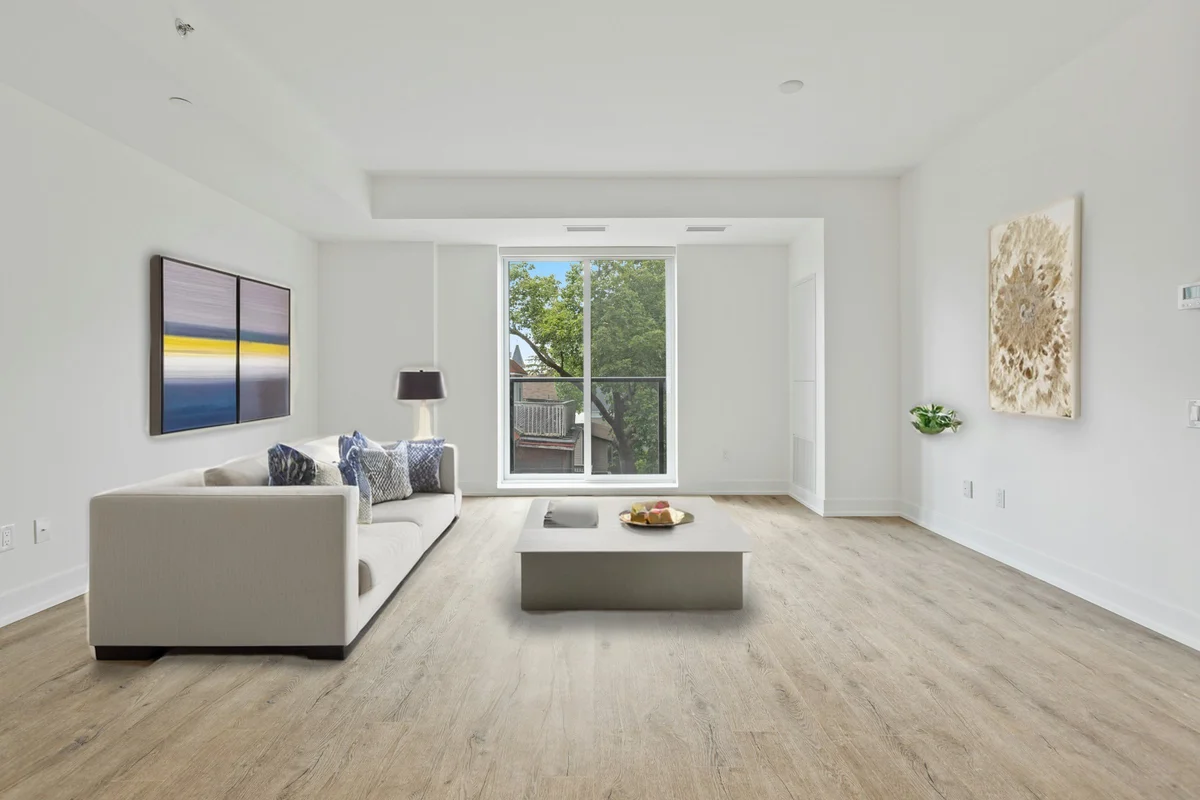
Real Estate and Interior Photography
Virtual staging photography sometimes requires replacing outdoor scenes visible through windows, or replacing the sky in exterior shots. AI background replacement handles these window-view replacements naturally since subject detection treats the interior as the subject and the exterior as background.
Exterior shots on overcast days can have the sky replaced with a bright blue sky, significantly improving the listing's visual appeal.
How AI Background Replacement Works
The process runs two AI operations automatically.
Subject detection and segmentation. A segmentation model identifies the subject in your image and creates a precise mask separating it from the background. The quality of this step determines edge quality — particularly around hair, fur, transparent objects, and fine structural detail. Modern segmentation models handle most subjects accurately, including complex hair and clothing edges.
Background compositing with edge refinement. Once the subject mask exists, the new background is composited behind it. For solid color and gradient backgrounds, this is straightforward replacement. For AI-generated scenes, the generative model produces a background image that is then composited under the subject. Edge refinement ensures the boundary between subject and background appears natural — adjusting feathering, shadow, and color correction to integrate the subject realistically into the new environment.
The entire sequence completes in under 10 seconds for most images at full resolution.
E-commerce Platform Background Requirements
Each major marketplace enforces different background standards, and non-compliance means rejected listings or suppressed search visibility. Amazon requires pure white (#FFFFFF) backgrounds for primary product images, and e-commerce sellers who standardize to white backgrounds report faster listing approval on Amazon and eBay — making correct background replacement a compliance requirement, not just an aesthetic choice.
Each major marketplace has specific background standards that affect how images display and whether listings pass automated review.
Amazon: Primary product images must have a pure white background (#FFFFFF), with the product filling at least 85% of the frame. Images with off-white or colored backgrounds are rejected or suppressed in search.
eBay: White or light gray backgrounds are recommended for product images. eBay's search algorithm may rank listings with professional backgrounds higher than cluttered backgrounds.
Etsy: No strict background requirement, but Etsy's search surfaces images with clean, professional backgrounds more prominently in shop previews.
Shopify / independent stores: No marketplace enforcement, but conversion optimization data consistently shows clean backgrounds outperform cluttered backgrounds for product pages.
Solid color replacement with #FFFFFF covers Amazon compliance and also works across all other platforms, making it the default for sellers managing multiple channels.
Getting the Best Results
Lighting consistency matters for AI-generated scenes. If your subject was shot under warm indoor light, an AI-generated outdoor sunny background will look composited because the light directions don't match. For AI-generated backgrounds, describe lighting conditions that match your subject ("soft studio light," "overcast daylight," "warm afternoon light") to improve visual coherence. When the subject's own light is wrong for the new scene, relight it first — the tool recalculates highlights and shadows to match a chosen direction so the composite reads as a single photograph.
Fine hair and fur edges are the hardest case. All background replacement tools struggle with very fine, translucent, or flyaway hair at the edges of a subject. For the cleanest results, subjects with clear, well-defined edges composite best. If fine hair edges are critical, inspect the result and use background removal to get the transparent cutout, then refine manually.
White backgrounds need true white. When replacing with white for marketplace compliance, use #FFFFFF precisely. Near-white backgrounds (e.g., #F5F5F5) read as off-white and may fail automated compliance checks on Amazon and some other platforms. Verify against the platform's specific requirement.
Match subject scale to background. AI-generated backgrounds look most natural when the subject occupies a realistic proportion of the frame relative to the background environment. A full-length portrait placed in a room background looks correct. The same portrait at thumbnail scale in front of a landscape looks out of proportion. Compose your original shot with background replacement in mind.
Shoot on a contrasting background. When planning shoots specifically for AI background replacement, shoot on a background that contrasts clearly with the subject. A dark product on a dark background makes segmentation harder. Clear contrast — light subject on dark background or vice versa — produces the cleanest initial mask.
Combining with Other Tools
Background replacement integrates naturally into a multi-step image processing workflow.
Start with AI background removal if you need the transparent PNG as an intermediate step — for example, if you're compositing the subject in a design tool outside EnhanceCraft. If you only need the finished composited image, go directly to background replacement and skip the intermediate step.
Combine with AI image upscaling when the source image is lower resolution than needed for the destination. Upscale first, then replace the background. Processing in this order means background replacement works with the highest-quality subject data.
For product images where the subject itself needs cleaning, AI object removal can eliminate stray marks, packaging defects, or reflections from the subject before background replacement. A clean subject composites better and requires less post-processing.
After compositing, ground the subject with the shadow and reflection generator so it sits on a surface instead of floating — the single most common giveaway of a pasted-in cut-out. For a whole catalog, color grading matches the tone of every image to one reference so products shot on different days look like a single cohesive shoot. And if you want all of these steps in one click, the product photo pipeline removes the background, upscales, enhances, and exports in Amazon or Shopify format automatically.
Ready to Replace Your First Background?
Try AI background replacement free — upload any image, choose solid color, gradient, or describe a scene, and see the result in under 10 seconds. 25 free credits to start, then 10 every month, no credit card required.
Found this helpful?
Share it with your network
Ready to try it yourself?
25 free credits to start, then 10 every month. No credit card. Process your first image in under 15 seconds.
Try Background Replacer freeMunib Ali Laghari
Founder & Lead Developer · EnhanceCraft
Munib Ali Laghari is the founder and lead developer of EnhanceCraft, an AI image toolkit. He writes about AI upscaling, photo restoration, and background removal. Connect on LinkedIn